Best AI Workspaces for Managing and Editing PDFs: Why Acrobat Studio Leads the Pack

AI workspaces are transforming the way people manage documents. They consolidate everything into one place, where files can be read, edited, signed, and shared without needing to switch between tools. What started as a small shift in productivity apps has now become the new standard for teams managing reports, contracts, and lengthy PDF documents every day.
Tools like Notion AI, Google Workspace with Gemini, and Microsoft Copilot have been trying to make that happen. Each brings smart features to the table, such as summaries, quick replies, and automation; however, they often fall short when the work requires collaboration on PDFs, contracts, and across teams.
That gap is what Adobe stepped into with Acrobat Studio. It takes the familiar Acrobat foundation and layers in AI tools that organize, summarize, and connect teams without disrupting the flow of work. The next sections look at what makes a strong AI workspace and how Acrobat Studio stands out in a field crowded with ideas but short on follow-through.
Up next, we’ll look at what really matters in an AI workspace, and why Acrobat Studio might be quietly solving problems others still miss.
Table of Contents
What to Look for in an AI Workspace?

Every AI workspace promises to make work smoother, but the real difference shows up in the details. See the small things that actually save time or keep projects on track. So, the best platforms balance speed, clarity, and trust. Here’s what matters most when you’re comparing them.
- Productivity Tools
AI should handle the small details. Editing, summarizing, filling out forms, or extracting insights from lengthy files. The right setup handles those tasks quietly so people can focus on actual decisions instead of file cleanup. - Collaboration Features
Real teamwork means being able to comment, edit, and review together without sending endless versions back and forth. Look for tools that track changes, consolidate feedback in one place, and make updates visible immediately. That’s what keeps projects from turning into guessing games. - Security and Sharing
Documents often carry private details. A solid workspace protects them with encryption, controlled access, and clear permissions. It also helps to know who’s viewed or signed a file. Those small details build trust across teams. - Integration
An AI workspace shouldn’t require a new routine. It should work seamlessly with existing tools, such as cloud drives, project boards, and shared folders. The fewer steps it takes to move a file or pull data, the better it fits into daily work. - User Experience and Accessibility
Good design makes the tool disappear. People can open it, get work done, and move on without a learning curve. Clear menus, simple navigation, and reliable support matter more than any fancy feature list.
The Top AI Workspaces

AI workspaces come in all shapes and setups. Some focus on content creation, others on collaboration or automation. Most share the same goal of helping people manage information without getting buried in it. Here’s how the main players line up.
Acrobat Studio is Adobe’s new workspace for people who spend most of their day working with documents. It combines the reliability of Acrobat with AI features and creative tools from Adobe Express. Everything connects in one space where you can read, edit, sign, and share without jumping between apps.
Key features
- AI-assisted PDF editing that cleans up text, images, and even scanned files.
- Smart workflows for comparing versions, summarizing content, and automating repetitive steps.
- Automated tasks that save time on formatting and organizing long documents.
- PDF Spaces that act as shared hubs for teams to chat with files, add notes, and revisit work anytime.
- Built-in Adobe Express tools for quick visuals like infographics, flyers, and presentations.
The strengths you will love
- Reliable for both individual work and team projects.
- Commenting and review tools keep feedback organized.
- Strong security with encryption and controlled sharing permissions.
- Works smoothly with Microsoft 365, Google Drive, and Dropbox.
Acrobat Studio feels complete without being complicated. It keeps files edited, reviewed, created, and protected in one place. The AI support seamlessly integrates into the workflow, enabling people to work faster without altering their existing processes.
Other AI Workspaces
AI workspaces have grown fast, each trying to make digital work a little easier. A few have carved out strong reputations in specific areas, and each brings something valuable to the table.
Microsoft Copilot
Built into Microsoft 365, Copilot works best for organizations that already use Word, Excel, and Teams on a daily basis.
- Helps draft, summarize, and organize information across Microsoft apps.
- Strong on collaboration within its own ecosystem.
- Comes with enterprise-grade security and compliance controls
Where it falls short is in handling PDFs directly. Editing, signing, or comparing files still relies on separate software, which can disrupt the workflow.
Google Workspace with Gemini
Gemini integrates seamlessly with Docs, Sheets, and Gmail. It’s fast, familiar, and easy for teams that already use Google Drive for all their needs.
- Real-time collaboration and commenting remain its biggest strengths.
- AI tools can summarize notes, refine writing, and assist in project structure.
- File sharing is simple and flexible.
For teams that work heavily with PDFs, however, Gemini has its limitations. Advanced editing, document protection, and e-signatures need other tools to fill the gaps.
Notion AI
Notion takes a different approach, acting as a digital workspace for planning, notes, and internal documentation.
- Great for brainstorming, outlining, and organizing scattered ideas.
- AI can rework notes, summarize pages, and generate quick drafts.
- Flexible layouts make it useful for creative or research-driven teams.
Notion’s main limitation comes with formal documents. It’s not designed for PDF editing, file security, or managing external reviews, which are common in professional workflows.
As you can see, each of these platforms shines in its own area. Some excel in real-time collaboration, others in planning or drafting.
Thus, Acrobat Studio sits in a slightly different space, one built around documents that need both precision and flexibility, where editing, collaboration, and protection all happen together.
| Feature / Capability | Acrobat Studio | Microsoft Copilot | Google Workspace with Gemini | Notion AI |
| AI-assisted document editing | ✓ | ✓ | ✓ | ✓ |
| Advanced PDF tools (edit, redact, compare) | ✓ | ✗ | ✗ | ✗ |
| Summarize long files and extract insights | ✓ | ✓ | ✓ | ✓ |
| Smart document workflows / automation | ✓ | ✓ | ✗ | ✗ |
| Real-time collaboration and commenting | ✓ | ✓ | ✓ | ✓ |
| Version control for shared documents | ✓ | ✓ | ✓ | ✗ |
| E-signature and document tracking | ✓ | ✓ | ✗ | ✗ |
| AI-integrated creative tools (visual content, templates) | ✓ | ✓ | ✗ | ✓ |
| Strong security and encryption | ✓ | ✓ | ✓ | ✗ |
| Permission controls and compliance tools | ✓ | ✓ | ✓ | ✗ |
| Integrates with Microsoft 365, Google Drive, Dropbox | ✓ | ✗ | ✓ | ✓ |
| Customizable AI assistants | ✓ | ✗ | ✗ | ✗ |
| Works on desktop, web, and mobile | ✓ | ✓ | ✓ | ✓ |
| Best for handling formal documents and PDFs | ✓ | ✗ | ✗ | ✗ |
Use Cases and Recommendations
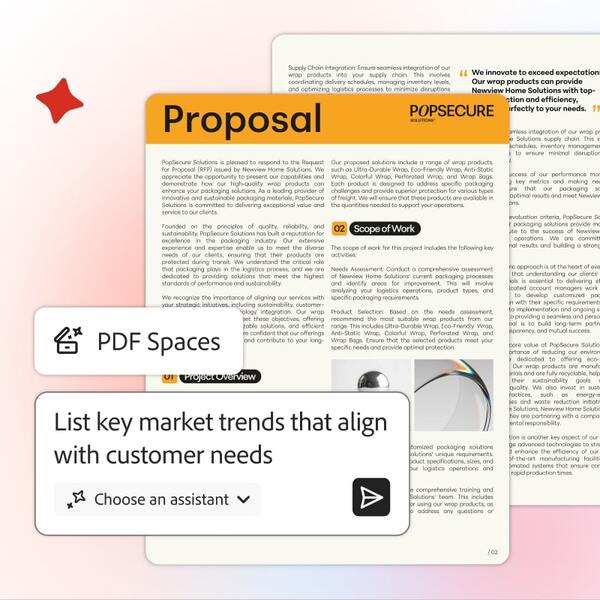
Digital workspaces are everywhere now, each promising to make document management easier. In practice, only a few truly fit how people work. Most days, it’s a mix of edits, reviews, and shared files moving between teammates. Acrobat Studio does it naturally, blending speed, order, and strong security. The next few examples show how it fits into everyday work
- Individual productivity
For solo work, Acrobat Studio significantly reduces the friction of managing documents. AI can summarize reports, clean up scanned text, and even answer questions about the contents of a file. Small tasks that used to take an hour now take a few minutes. It’s especially useful for freelancers, students, or professionals who frequently work with lengthy PDFs. - Team collaboration
Teams benefit from the shared spaces built into Acrobat Studio. Everyone can comment, edit, and review the same document simultaneously without needing to juggle attachments. The AI summaries keep group discussions focused, and workflow automation helps expedite approvals and sign-offs. It fits easily into mixed setups where some people work on desktops and others on mobile. - Secure document handling
Security is built into the workflow, not added on top of it. Documents can be shared with specific permissions, and sensitive sections can be locked down or redacted before sending. Encryption, audit trails, and compliance support make it reliable for industries that rely on confidentiality, such as legal, healthcare, or finance.
Every AI workspace brings something useful to the table, but Acrobat Studio stands out for balance. It combines editing, collaboration, and protection in a way that feels natural and dependable.
For anyone who works with PDFs every day and wants fewer tools to manage, this is the setup that makes the most sense.
Our Takeaway
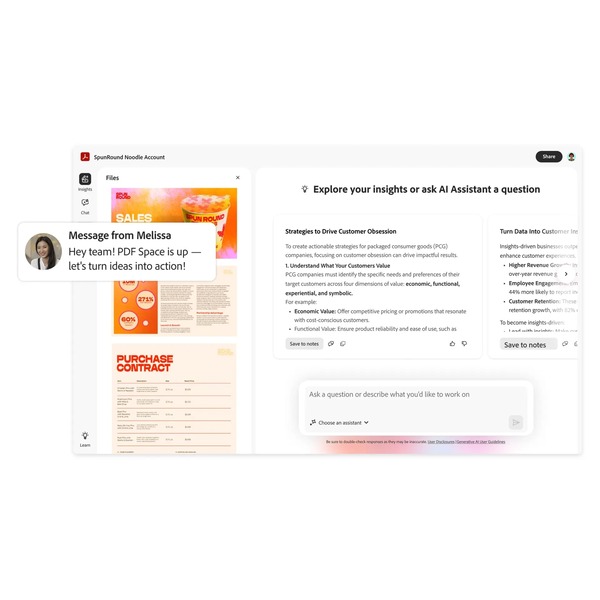
Among the growing list of digital workspaces, Acrobat Studio stands out for being complete. It brings editing, organization, collaboration, and content creation into one familiar space. The flow feels natural. You move from reviewing to sharing to signing without losing focus or switching tools.
Its intelligence feels subtle but useful. The AI features read long documents, surface relevant details, and simplify everyday work without getting in the way. The security and permission controls add a level of trust that teams can rely on, whether they’re sharing contracts, reports, or creative projects.
For anyone working with PDFs every day, Acrobat Studio feels like a calm center amidst a busy digital setup. It’s dependable, easy to learn, and built for real work, not just tech demos.
If your current tools still make managing documents feel like juggling, it’s worth seeing how Acrobat Studio handles the same tasks with less effort and more control. It’s a workspace that feels finished.
Next, check out other reviews that you might also like:





Ask the community or leave a comment
WRITE A REVIEWCustomer Reviews
Leave a review